In this article we will see how to link business mail with Apple mail to view and reply to all the emails that arrive to your company email without leaving the your mail application from your iphone or imac. You can also, of course, send messages from your company email with apple mail.
If you prefer connect business email to outlook o view company email from gmail you can click on what you are interested in to go to the corresponding tutorial in this blog.
Why is it interesting to connect business mail with Apple mail?
Once you have created your email on the server, you need to connect it with some email client to be able to send on behalf of that email and also receive those emails from an application that allows you to view and send emails in an easy and intuitive way. If you have an iOS device you will most likely be interested in connecting your business email to Apple mail if you are already familiar with its interface or use it with other emails.
How to link business mail with Apple mail?
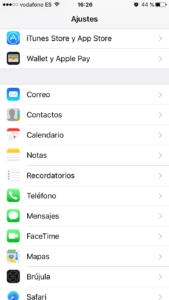
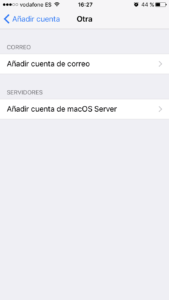
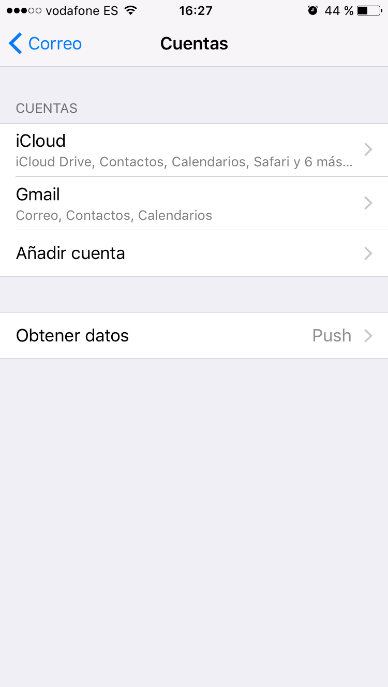
1. The first thing to do is to go to settings and click on e-mail, accountsclick on add account and then click on the option another of the list.


2. A window will appear with the account data for us to fill in:
- Name: We will put the name that we want the sender of our mails to have.
- Mail: We will set the e-mail account to be configured.
- Password: The password of the email account.
- Description: We leave it blank.
Fill in the data and click on Following.

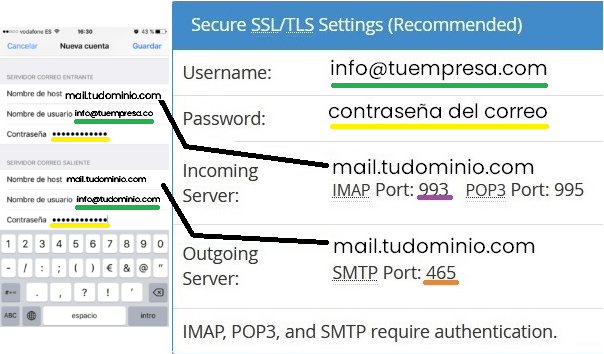
3. Then it will ask us for the server data. Here is when you must use the configuration data that we will have sent you (if you don't do it with us, you can find this data in your cPanel, in mail accounts/connect devices).
To link business mail with Apple Mail, we check the option IMAP.
- INCOMING MAIL SERVER
- Host name: We will put the info that I have provided you for the configuration of your mail (ex: mail.yourdomain.com)
- User name: Our mailing address.
- Password: The e-mail password.
- OUTGOING MAIL SERVER
- Host name: We will put the info that I have provided you for the configuration of your mail (ex: mail.yourdomain.com)
- We will leave the Username and Password empty to be filled in later.

4. With everything filled in, click on Save If you are not sure, you may ask us for two confirmations:
- Cannot connect using SSL: We say Yes.
- Unable to verify server identity: Click on continue.


5. With this we will have the account configured to receive emails, now we are going to configure it to send.
6. Log back into the account and click on the button under the OUTGOING MAIL SERVER (SMTP).
7. We verify that in authentication you have chosen the option Password.
8. Then we fill in the fields:
- User name: It will be the mailing address.
- Password: The account password.
9. With this we press OK to save the configuration and then OK to store the account data.
And this is how we can link business email with Apple Mail. We can now go to the Mail application and enjoy our mail.