Have a copy of all the messages that we send and receive in our email account is something that can save a lot of trouble and headaches. In addition, if we want to migrate our mail account to another service, or server, it can be very good to download and store all these emails on your computer, mobile, or cloud and restore them later.
That said, we are going to see how to take backup of the mail with gmail. This tutorial serves for both gmail accounts to other accounts that you have linked to gmail. If you want to know how to link an account from another provider (or your own website) with gmail, don't miss out this other article.
Take backup of the mail with gmail step by step
The first thing you're going to do is enter our Gmail account and access to the account options.

We chose the option to Manage your Google account.

And we follow the sequence of the options you see below:
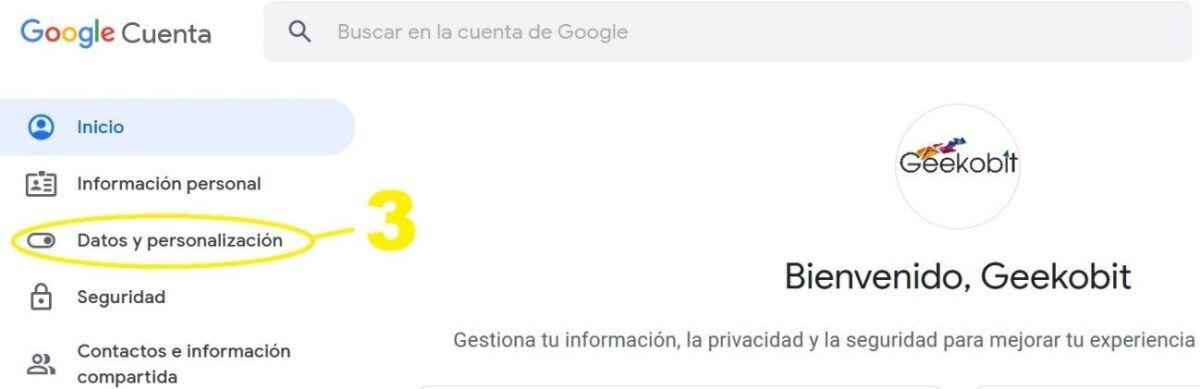

At this point we will choose to uncheck everything and then check only the option to Email the backup is not too big and not take any more time or storage is necessary. Once this is done, we chose the number “7” to verify that it also will take a copy of the mail company that you have linked “[email protected]”

We verify that marked e (or e) that we are interested to support, not to be so, so click and we click ok at the top right of the screen.

Finally, you can guide the selection in the image below for the options to choose from, and we click create export.
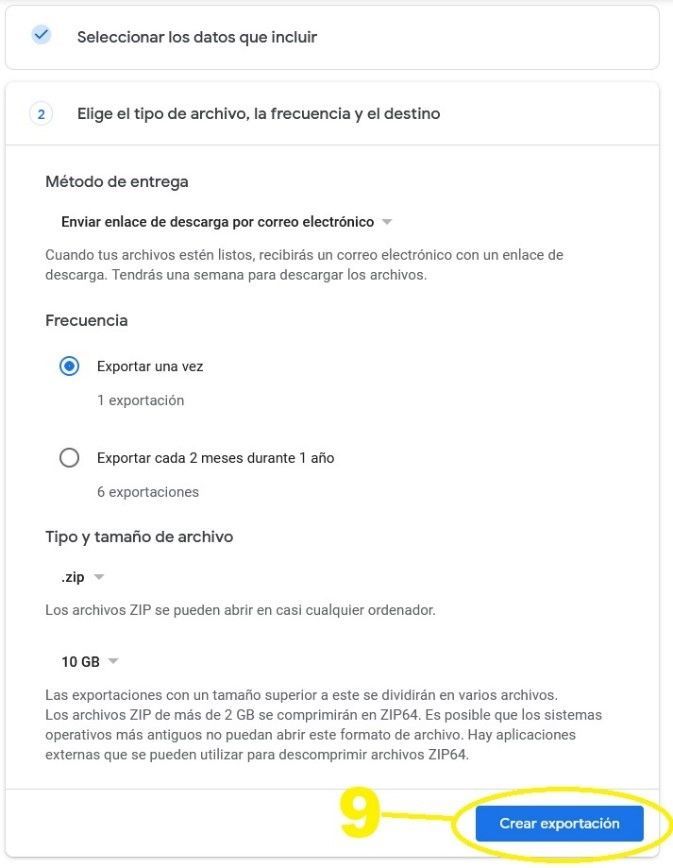
Google will then prepare your compressed file with the data to back up, and you will get the copy.